If the Collimator seems to be stuck, please do the following:
- Open the ICS Panel in the Tools menu of the OS.
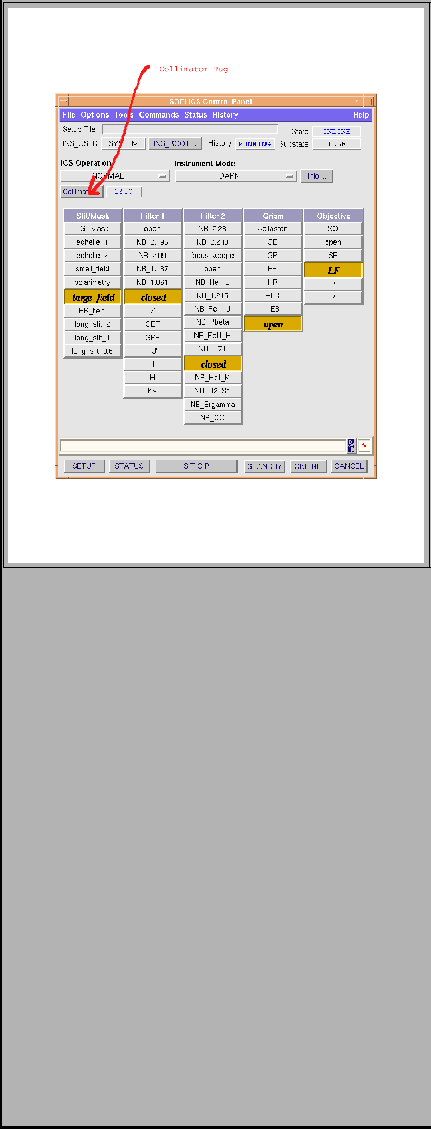
- Open the Collimator Motor Control Panel (it
looks the same than the other Motor Device Control, Figure 3)
by clicking on the Collimator Tag.
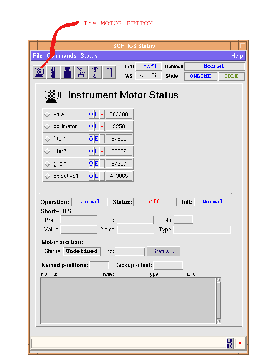
- Open the isiStatus Panel from the NTT Menu and activate the Motor Status
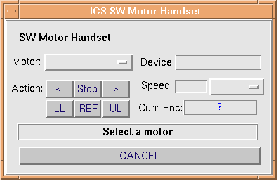
- Open the SW Handset Panel from the ICS Tools Menu
- On the Handset activate the Collimator
 Button and then the Stop button after
 5s. Watch the M
signal, it should be active, while the motor moves
- Click the  Button and then the Stop button after 5s.
Watch the M signal, it should be active, while the motor moves
- Click on LL (lower Limit) and watch if the Motor moves, by checking
the blue M on the isiStatus Panel (third column) and the decreasing
values of the step counter.
- Note down the value of the LL, once the counting has stopped.
- Click on UL (Upper Limit) and watch again if the motor moves and
the step counts increase.
- Note down the value of the UL, once the motor has stopped.
- The difference of these two values should be in the range of 230'000 steps
- Perform an init by clicking on the respective button inside the
Motor Device Control. Watch the M signal in the isiStatus Panel.
- The counter will be set to 0 when the init is finished
- Press again UL, watch the M signal and note down the counter value.
It should be around 49'000 to 52'000
- Repeat the HW init.
If all this is working o.k. the function is perfectly set and should be operational again. If anyone of these operations fail, note down what happend, add a copy of the VLT log monitor and file a problem report.